LIMIT GAME FPS
THE SIMS 3


Guide by Anime_BoomLast Updated: 04/16/2025
This guide will outline the steps required in order to limit the game to a framerate consistent with your systems refresh rate. The use of the steps in this guide are HIGHLY recommended.
Limiting the game to only use your monitors refresh rate will increase game performance dramatically. The reason being is that the engine The Sims 3 runs on, runs at an unlimited FPS with no built in frame limiter!
This is why most PC's sound like they are taking flight from an airport runway when playing. Not limiting the games FPS can decrease the life of your graphics card fans!
Limiting FPS - NVIDIA GPU

Right click the desktop and click on "Nvidia Control Panel".

Once the control panel opens click on the tab "Manage 3D settings"
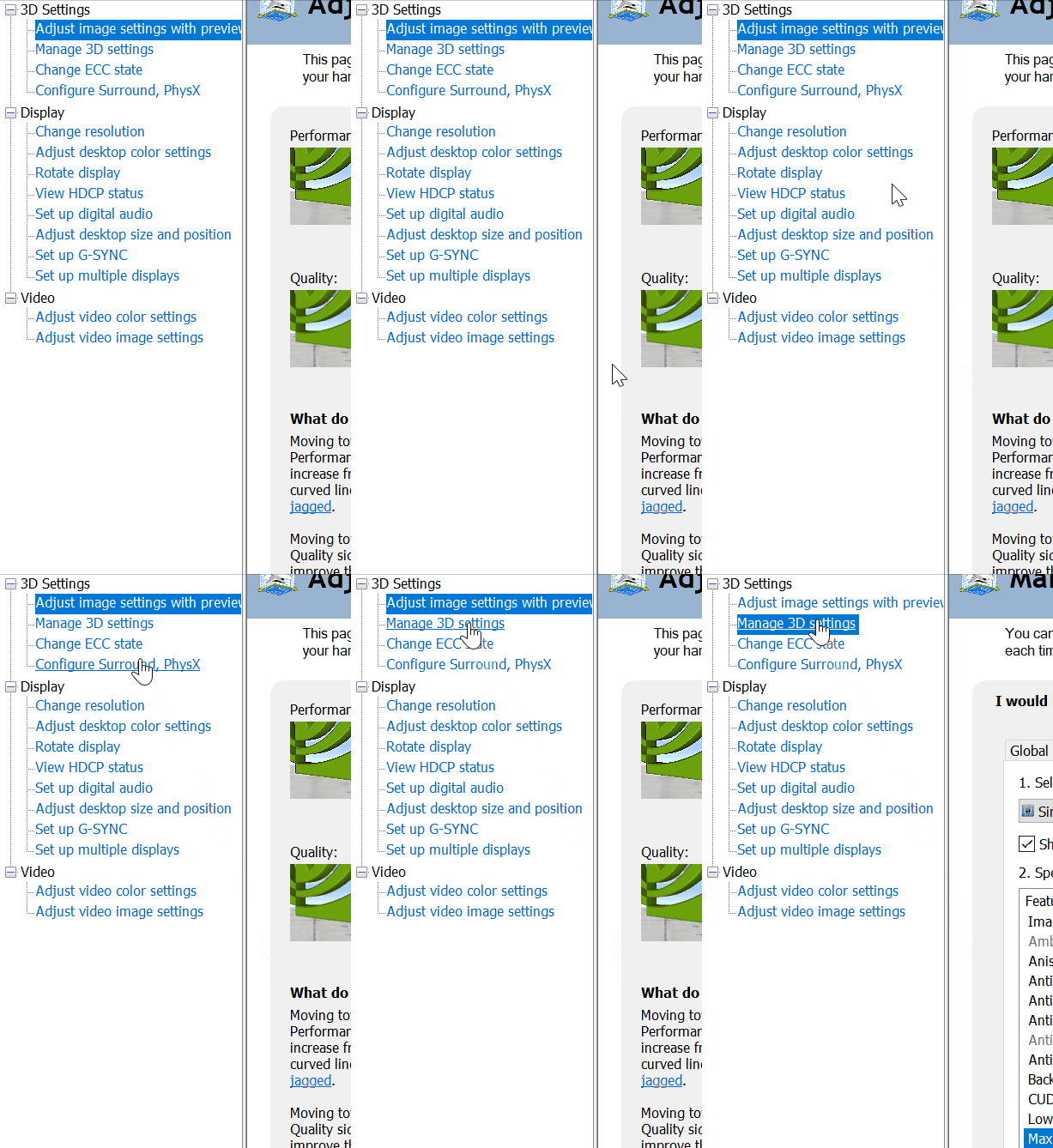
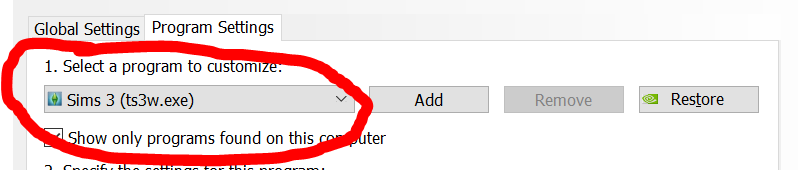
After clicking make sure that the application selected is "ts3w.exe"
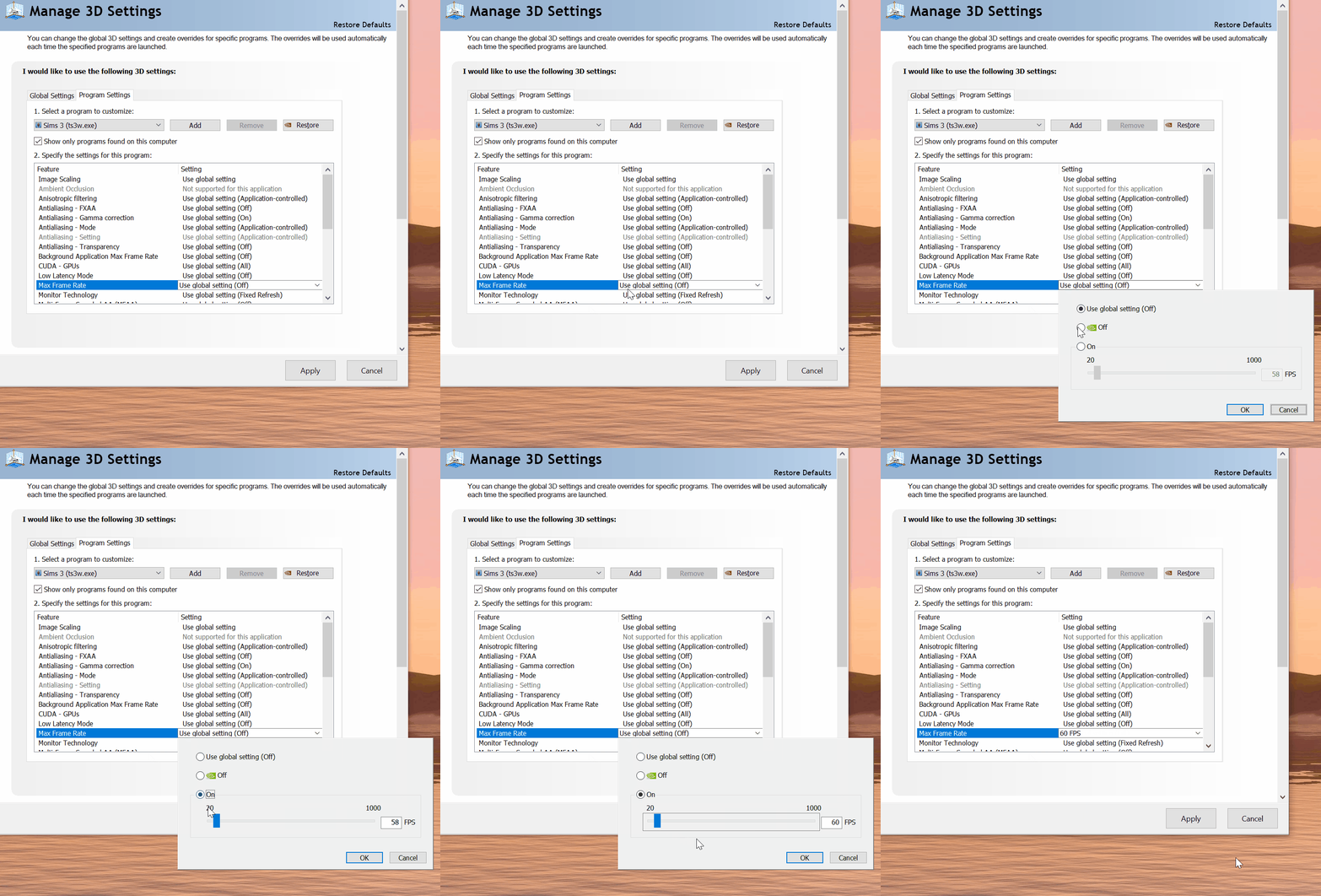
Once confirming that ts3w.exe is selected find the option "Max Frame Limit". Once there click the option and select "on" once selected put in your monitors refresh rate and then press "Ok".
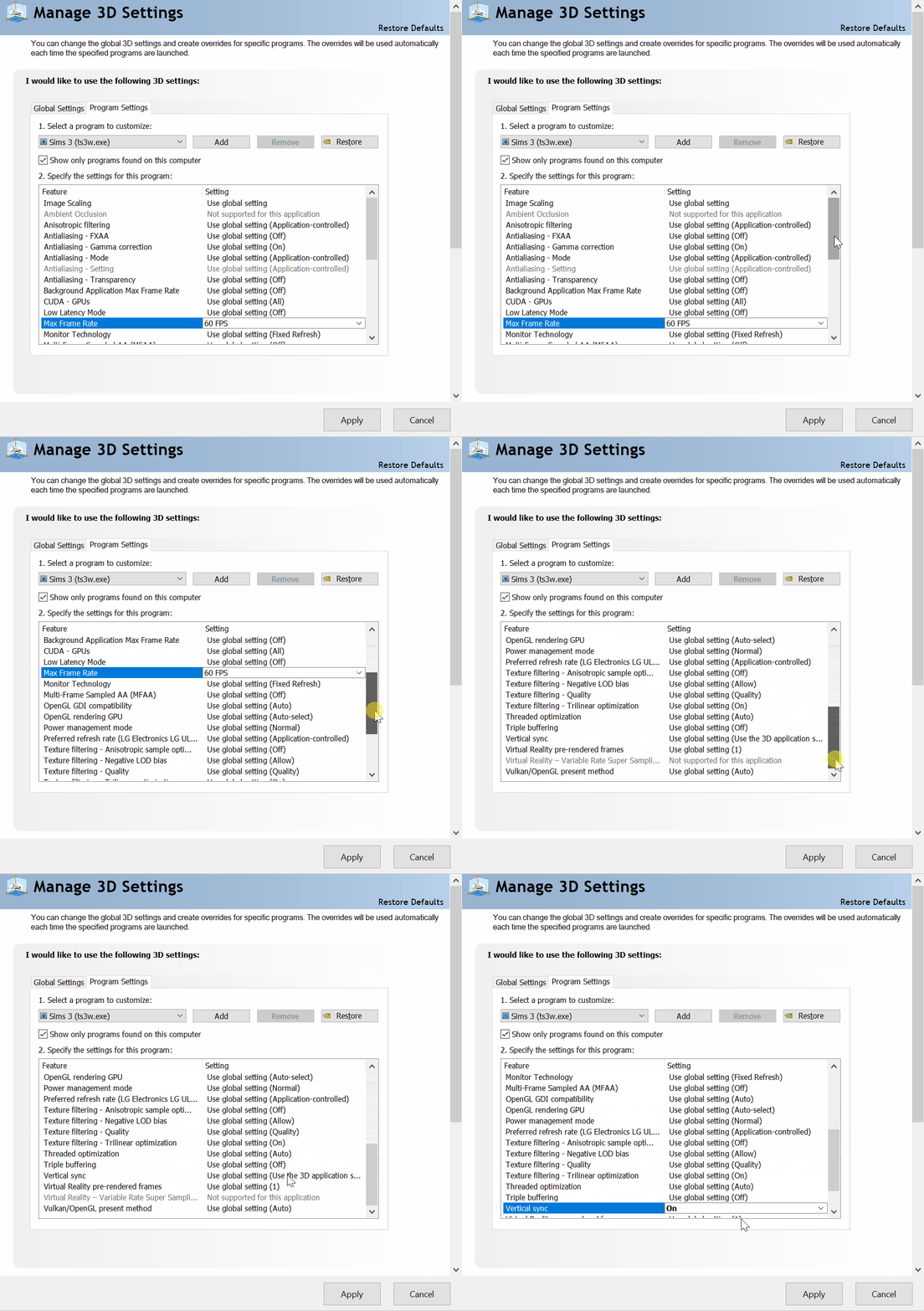
Next you will need to select the option "Vertical Sync", once slected click on the option "on".
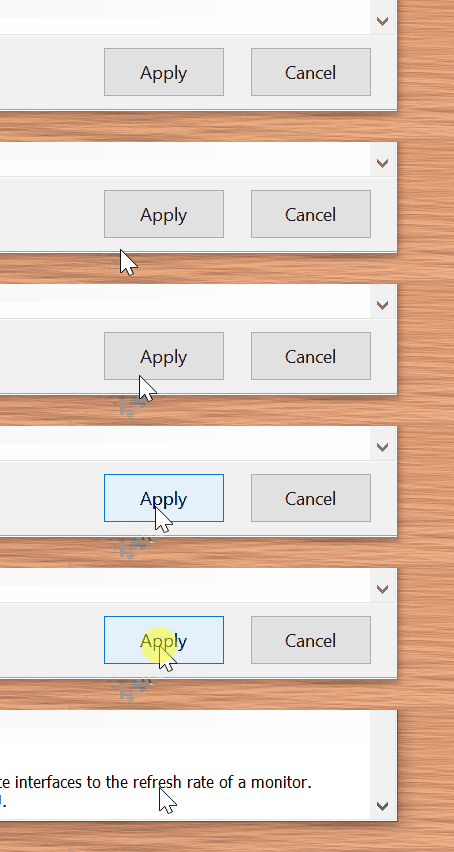
Once all done make sure to press the "Apply" Button at the bottom of the window to accept and apply the changes!

Limiting FPS - AMD GPU
Adendum from SimTools Author: I have not owned an AMD graphics card for quite some time, and thus I have no point of reference on how to limit the framerate, but I found this video, which I believe should help users accomplish the same results using AMD hardware. Please note, this is outside the purview of this guide, and is information which Anime_Boom has not included in his original guide.

Limit FPS with Smooth Patch
If you do not have an NVIDIA graphics card, or are unfamiliar with how to achieve the same results with the AMD control panel, you can use the Smooth Patch by LazyDuchess to get the same results, as it has a built-in FPS limiter.
Go to the game directory
For Steam: "Steam\steamapps\common\The Sims 3\Game\Bin"
For EA Play: "EA Games\The Sims 3\Game\Bin"
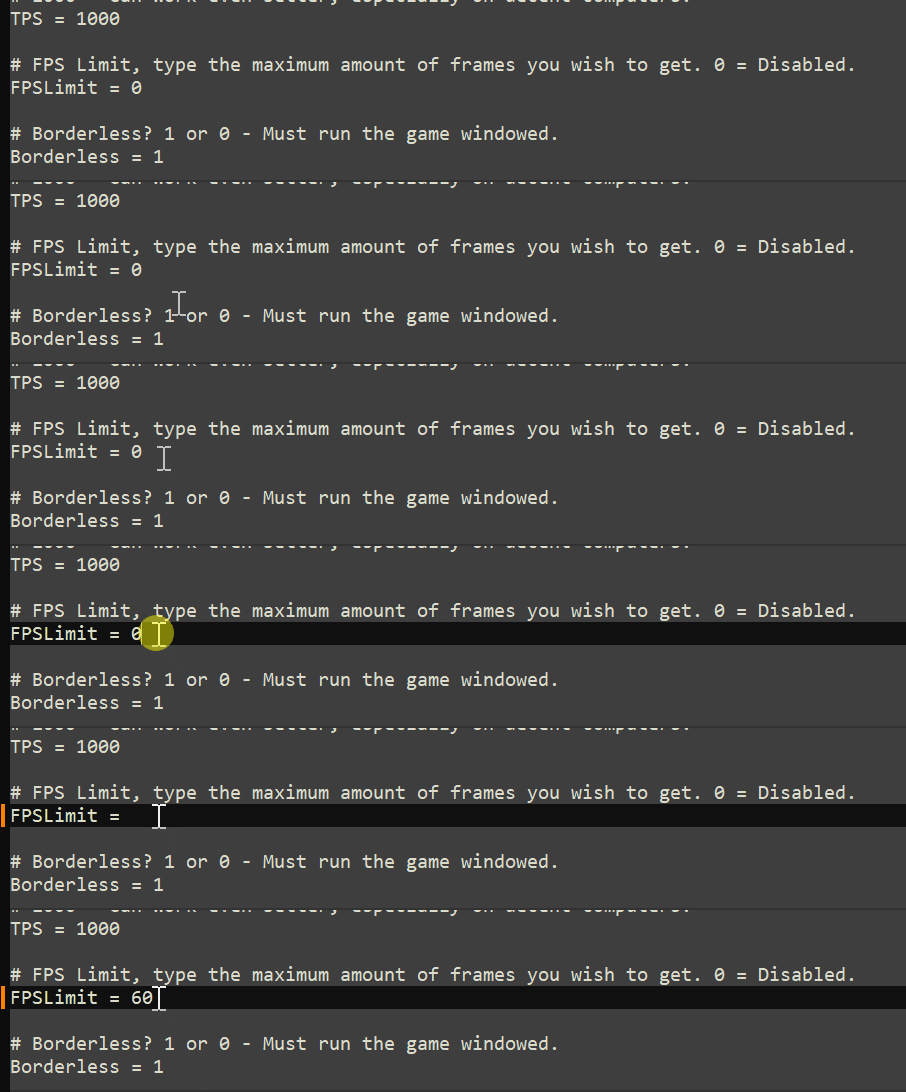
Then you will need to open "TS3Patch.txt" once open replace the "0" next to "FPSLimit =" with your monitors refresh rate then save the document!
Go to the game directory
For Steam: "Steam\steamapps\common\The Sims 3\Game\Bin"
For EA Play: "EA Games\The Sims 3\Game\Bin"
Then you will need to open "TS3Patch.txt" once open replace the "0" next to "FPSLimit =" with your monitors refresh rate then save the document!